NSS Background Remover
Restoring and colorizing old photos
Bring an old or damaged family photo back to life — denoise and restore detail, colorize black-and-white, upscale for printing, and optionally cut the subject out — all on-device with nothing uploaded.
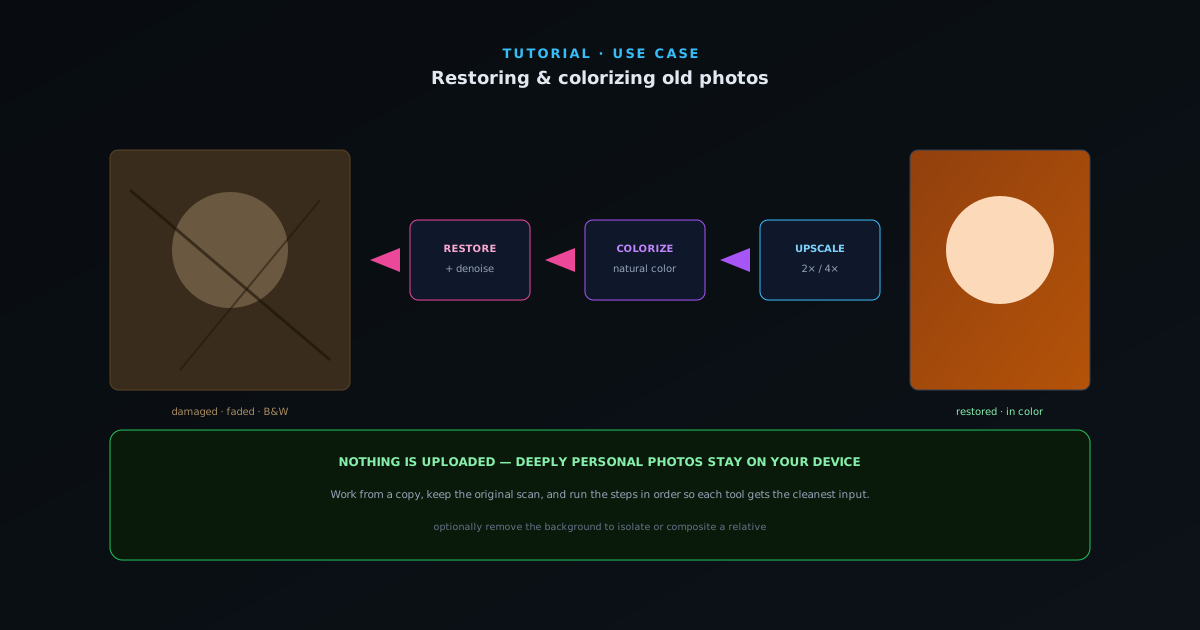
Old family photos are exactly the kind of images you do not want to upload to an unknown server. Because the whole AI suite runs on-device, you can restore, colorize, and upscale a treasured photo with nothing ever leaving your computer. This guide is the restoration workflow in order.
- 1
1. Start with restore and denoise
Open the photo and run Restore Old Photo (and Face Restore if there are faces) to rebuild lost detail, then Denoise to clean up grain, scanning artifacts, and compression noise. Doing this first gives every later step a cleaner image to work from.
- Restore Old Photo / Face Restore for detail.
- Denoise for grain and artifacts.
- 2
2. Colorize black-and-white
Run Colorize to add believable, natural color to a black-and-white photo. It is one of the most striking transformations in the suite — a monochrome portrait becomes a lifelike image in one pass. Because it is on-device, you can try it on the most personal photos without privacy concerns.
- 3
3. Upscale for printing
Old photos are often small or low-resolution. Use the 2× or 4× AI upscaler to add resolution so the restored image can be printed larger than the original scan allowed, keeping detail crisp at the new size.
- 2× / 4× AI super-resolution.
- Print larger than the original allowed.
- 4
4. Optionally isolate the subject
If you want just the person from a cluttered or damaged background, finish by removing the background — then place them on a clean backdrop, or composite several restored relatives into one image in the editor. The straight-alpha cutout blends cleanly into whatever you build.
Restore in order, keep the original
Always work from a copy and keep the untouched scan — restoration is interpretive, and you may want to redo it. Run the steps in order (restore → denoise → colorize → upscale) so each tool works on the cleanest possible input. And rest easy that none of these deeply personal photos are uploaded anywhere; the models run in your browser.