NSS Background Remover
Removing and replacing objects with AI
Erase a photobomber, remove text or a logo, swap an object, or extend the frame — using inpaint, outpaint, generative fill, and object replace, all on-device.
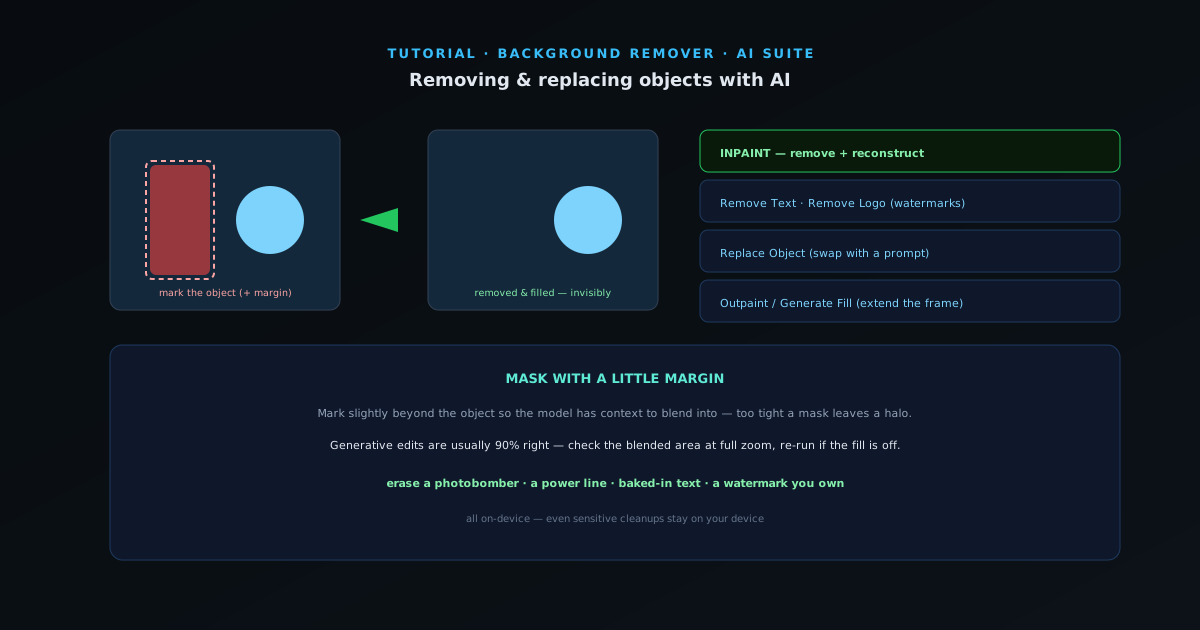
Some of the most useful AI is the kind that makes things disappear — a stray object, leftover text, a watermark — and fills the gap so you cannot tell it was there. This guide covers the removal-and-fill tools and when to reach for each.
- 1
1. Inpaint — remove and fill
Inpaint is the core tool: mark an object or area and the model removes it and reconstructs what should be behind it. It is how you erase a photobomber, a power line, or an unwanted object and get a believable fill. Mark a little beyond the object’s edge so the model has room to blend.
- Inpaint: mark → remove → fill convincingly.
- 2
2. Remove text and logos
Remove Text erases text from an image, and Remove Logo clears a logo or watermark — both are specialized inpaint cases tuned for those jobs. Useful for cleaning up a photo that has a caption baked in, or reclaiming an image with a watermark you have the rights to use.
- Remove Text · Remove Logo (watermarks).
- 3
3. Replace an object or extend the frame
Replace Object swaps one object for another guided by a prompt — change the thing in the scene rather than just removing it. Outpaint and Generative Fill do the opposite of removal: they extend the image beyond its borders or fill a selected area with new generated content, useful for changing aspect ratio or adding space around a subject.
- Replace Object: swap with a prompt.
- Outpaint / Generate Fill: extend or fill the frame.
- 4
4. Refine and finish
Generative edits are usually 90% right; check the blended area at full zoom and re-run on a smaller or larger mask if the fill is off. Then carry on — cut out the cleaned subject, grade the image, or export. It all runs locally, so even sensitive cleanups stay on your device.
Mask with a little margin
For inpaint and removal, mark slightly beyond the object so the model has context to blend into — too tight a mask leaves a halo of the original. If a fill looks wrong, adjusting the mask size and re-running usually fixes it faster than fighting it.