NSS Background Remover
Compositing products into lifestyle scenes
Plain-white product shots convert; lifestyle shots sell the feeling. How to use the Lifestyle Composer and editor to place a product into a believable scene — scale, perspective, shadow, and light — without a photoshoot.
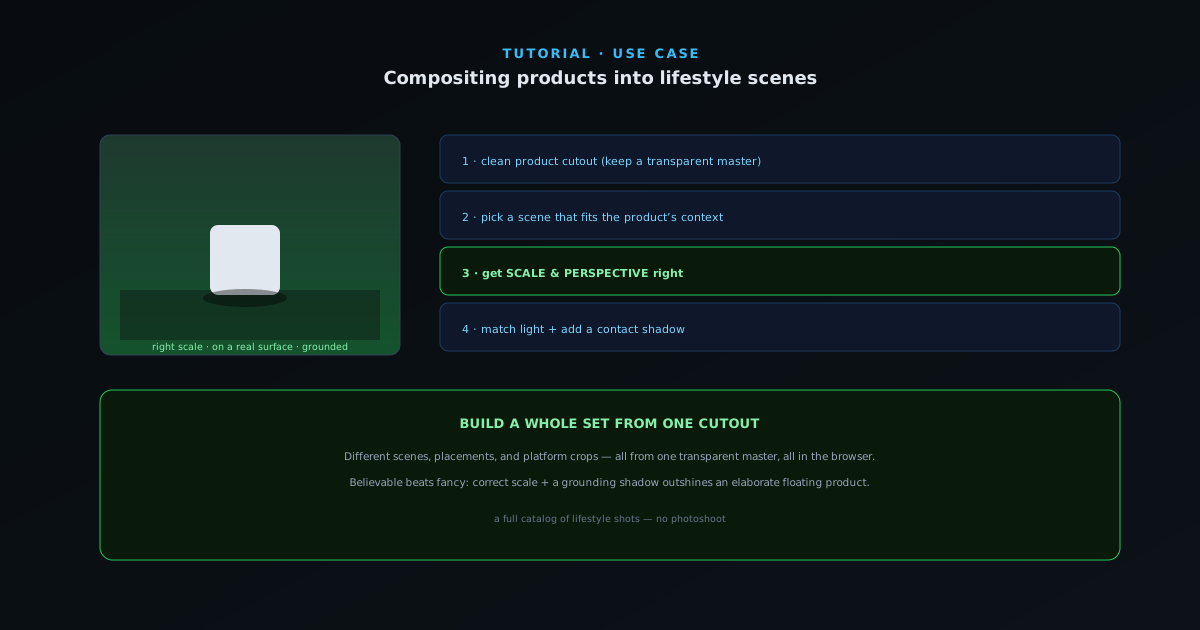
A white-background product photo answers "what is it." A lifestyle photo answers "what is it like to own this" — and that is what converts. You do not need a studio and a stylist to make one; you need a clean cutout and a believable placement. This guide shows the workflow.
- 1
1. Start with a clean product cutout
Remove the product’s background and refine the edge — a lifestyle composite is only as good as the cutout under it. For products with a defined edge, Fast mode is enough; reach for Best Quality on soft or fuzzy items. Keep a transparent PNG master so you can reuse it across multiple scenes.
- 2
2. Pick a scene that fits the product
Use the Lifestyle Composer’s ready-made scenes or bring your own background photo. Match the scene to the product’s context — a mug in a cozy kitchen, a candle on a styled shelf, headphones on a desk. The scene should feel like a place the product naturally lives, not a random stock backdrop.
- Lifestyle Composer scenes or your own background.
- Match the scene to the product’s real context.
- 3
3. Get scale and perspective right
The fastest way to break a composite is wrong scale — a mug the size of a microwave. Size the product to match objects already in the scene, and place it on a surface that exists in the background (a table, a shelf) so the perspective lines up. A product floating in space or sized wrong is more obvious than any edge flaw.
- Scale the product against objects in the scene.
- Place it on a real surface so perspective matches.
- 4
4. Match light and add a shadow
As with any composite, match the product’s exposure and color temperature to the scene’s light, then add a soft contact shadow where it sits on the surface, in the scene’s light direction. This grounds the product and is the single biggest tell between a real photo and a paste-in.
- Match exposure and color to the scene.
- Add a contact shadow to ground the product.
- 5
5. Make a set from one cutout
Because the cutout is reusable, you can produce a whole set of lifestyle images from one product — different scenes, angles of placement, and crops for different platforms — all from the same transparent master, all in the browser. Export each at the size its destination needs.
Believable beats fancy
A simple scene with correct scale, perspective, and a grounding shadow beats an elaborate one with the product floating. Keep a transparent master of each product and generate every lifestyle image from it — it is the cheapest way to build a full, consistent catalog of lifestyle shots without a single photoshoot.