NSS Background Remover
Generating images from text and transforming images with AI
Create images from a text prompt, transform an existing image with image-to-image, turn a sketch into a render, and spin off variations — all on-device with the AI generation tools.
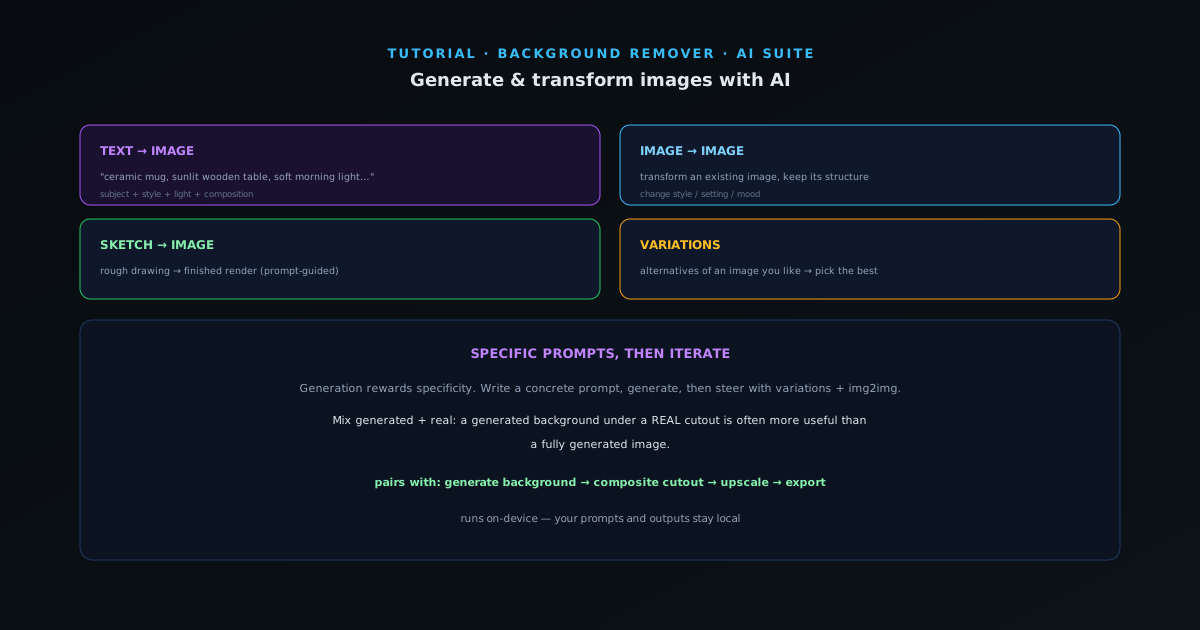
Beyond editing photos you already have, the AI suite can create new images. This guide covers the generation tools — text-to-image, image-to-image, sketch-to-image, and variations — and how to use them together with the rest of the toolkit.
- 1
1. Text to image — start from a prompt
Text-to-Image generates an image from a written description. Be specific about subject, style, lighting, and composition — "a ceramic coffee mug on a sunlit wooden table, soft morning light, shallow depth of field" beats "a mug." The more concrete the prompt, the closer the result to what you pictured.
- Describe subject + style + light + composition.
- 2
2. Image to image — transform what you have
Image-to-Image takes an existing image and a prompt and transforms it while keeping its structure — change the style, the setting, or the mood of a photo you already have. Sketch-to-Image does the same from a rough drawing, turning a quick sketch into a finished render guided by your prompt.
These are the tools for "I have something close, make it into this" rather than generating from nothing.
- Image-to-Image: transform an existing image.
- Sketch-to-Image: rough drawing → finished render.
- 3
3. Variations — explore options
Once you have an image you like, Variations generates alternatives in the same direction — useful for finding the best version of an idea or producing a set. Generate a few, pick the strongest, and refine from there rather than trying to nail it in one shot.
- Variations: alternatives of an image you like.
- 4
4. Combine with editing and cutouts
Generation pairs with the rest of the suite: generate a background and composite a real product cutout onto it, generate a scene and inpaint adjustments, or generate an image and upscale it for print. Because it runs on-device, your prompts and outputs stay local.
Specific prompts, then iterate
Generation rewards specificity and iteration — write a concrete prompt, generate, then use variations and image-to-image to steer toward what you want rather than expecting a perfect first result. And remember you can mix generated and real elements: a generated background under a real cutout is often more useful than a fully generated image.