NSS Background Remover
Beyond cutouts: the AI suite — generate, inpaint, restore, colorize, upscale
A tour of the on-device AI tools beyond background removal: generate a new background, inpaint out distractions, restore and colorize old photos, denoise, and upscale 2× or 4× — all without uploading.
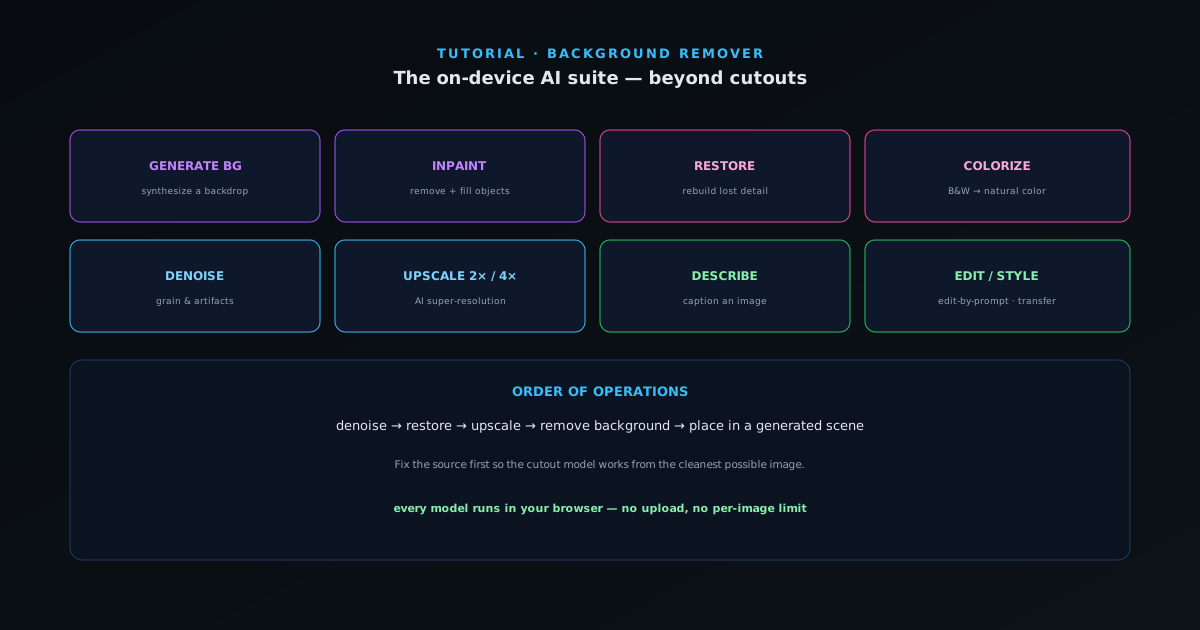
Background removal is one tool in a much larger on-device AI suite. The same privacy model applies to all of it: the models run in your browser, so your images never leave your machine. This guide maps the suite so you know which tool to reach for.
These tools pair naturally with a cutout — remove the background, then generate a new one, or restore an old photo before you cut the subject out of it.
- 1
1. Replace a background instead of just removing it
After a cutout, use Generate Background to produce a new backdrop for your subject, or Inpaint to paint out an unwanted object and let the model fill the gap convincingly. Together these turn “remove the background” into “change the scene.”
- Generate Background: synthesize a new backdrop.
- Inpaint: remove an object and fill the space.
- 2
2. Repair and enhance photos
Restore Old Photo and Face Restore rebuild detail in damaged or low-quality images, Denoise cleans up grain and compression artifacts, and Colorize adds believable color to black-and-white photos. These are the tools to run before a cutout when the source image needs help first.
- Restore / Face Restore for damaged images.
- Denoise for grain and artifacts.
- Colorize for black-and-white photos.
- 3
3. Upscale for print and detail
The image upscaler adds resolution with 2× and 4× AI super-resolution, entirely in the browser — useful when a cutout needs to print larger than the source allows, or when a small product image has to fill a hero slot. There is a matching 2× / 4× upscale for video as well.
- 2× and 4× AI super-resolution for images.
- 2× / 4× upscaling for video.
- 4
4. Describe, transform, and combine
Other tools in the suite include Describe (generate a caption/description of an image), Text-to-Image and Edit-by-Prompt for generative work, and Style Transfer to push an image toward a chosen aesthetic. Because they share the same workspace, you can chain them — restore, upscale, cut out, then place into a generated scene — without leaving the page.
Order of operations
Fix the source before you cut: denoise and restore first, upscale if you need resolution, then remove the background. Doing it in that order gives the cutout model a cleaner, higher-detail image to work from and avoids amplifying artifacts after the fact. And remember every one of these runs locally — there is no per-image limit and nothing is uploaded.