NSS Background Remover
AI photo enhancement: exposure, color, and clarity
Fix a flat, dark, or dull photo in a few clicks. How to use the on-device enhancement tools — auto-grade, exposure, white balance, HDR, relight, deblur, and denoise — to make an image pop before you cut it out or publish it.
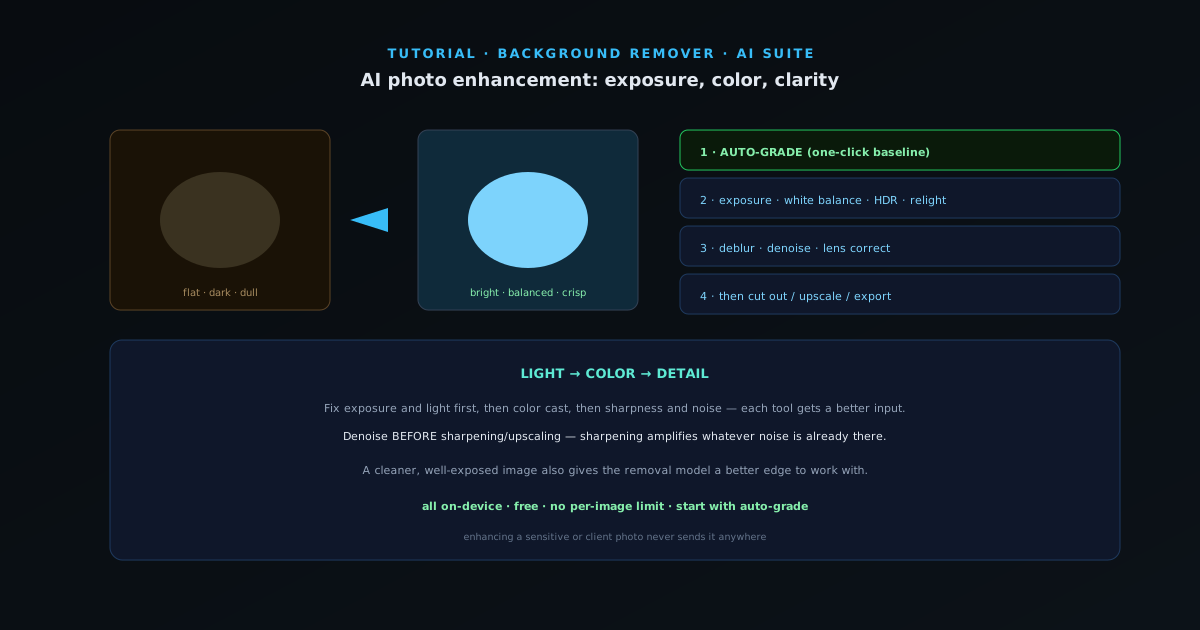
A great cutout on a mediocre photo is still a mediocre photo. Before (or instead of) removing a background, the AI suite can fix the underlying image — exposure, color, sharpness, and light — entirely on your device. This guide covers the enhancement tools and the order to run them in.
All of these run in your browser with nothing uploaded, so you can try, undo, and stack them freely.
- 1
1. Start with auto-grade
Auto-grade is the one-click starting point: it balances exposure, contrast, and color in a single pass for a more polished look. It is the fastest way to lift a flat photo, and a good baseline before you reach for the more specific tools. If auto-grade gets you 90% there, you may not need anything else.
- Auto-grade: one-click exposure + contrast + color balance.
- 2
2. Fix exposure, white balance, and light
For images that need targeted help: Auto Exposure corrects under- and over-exposed shots, Auto White Balance removes color casts (the orange of indoor light, the blue of shade), and HDR expands the dynamic range so highlights and shadows both keep detail. Relight lets you change the lighting on a subject or scene when the original light is unflattering.
Work brightness first, then color — the eye reads exposure before it reads color cast, so getting the light right makes the white-balance call easier.
- Auto Exposure · Auto White Balance · HDR · Relight.
- 3
3. Recover sharpness and clean noise
Deblur sharpens a soft or slightly out-of-focus image, and Denoise removes grain and compression artifacts. Lens Correct fixes distortion from wide or phone lenses. Run Denoise before any sharpening or upscaling — sharpening amplifies noise, so cleaning first gives a better result.
- Deblur · Denoise · Lens Correct.
- Denoise before sharpening/upscaling.
- 4
4. Then cut out or export
A cleaner, well-exposed image also gives the background-removal model a better edge to work with, so enhancing first can improve your cutout. Once the photo looks right, remove the background, upscale if you need more resolution, or just export the enhanced image.
The whole enhancement chain — grade, expose, white-balance, denoise, sharpen — runs locally and free, with no per-image limit.
Light, then color, then detail
Run enhancements in that order — fix exposure and light first, then color cast, then sharpness and noise — so each tool works on a better input. Start with auto-grade; it often does most of the job. And because it is all on-device, enhancing a sensitive or client photo never sends it anywhere.