2026 · NSS Background RemoverAbout 13 min readNovus Stream Solutions
How to remove a video background for free (in your browser)
Remove the background from a video clip per frame — free, no green screen, no upload — then grade, trim, and export it, all in the browser.
Overview
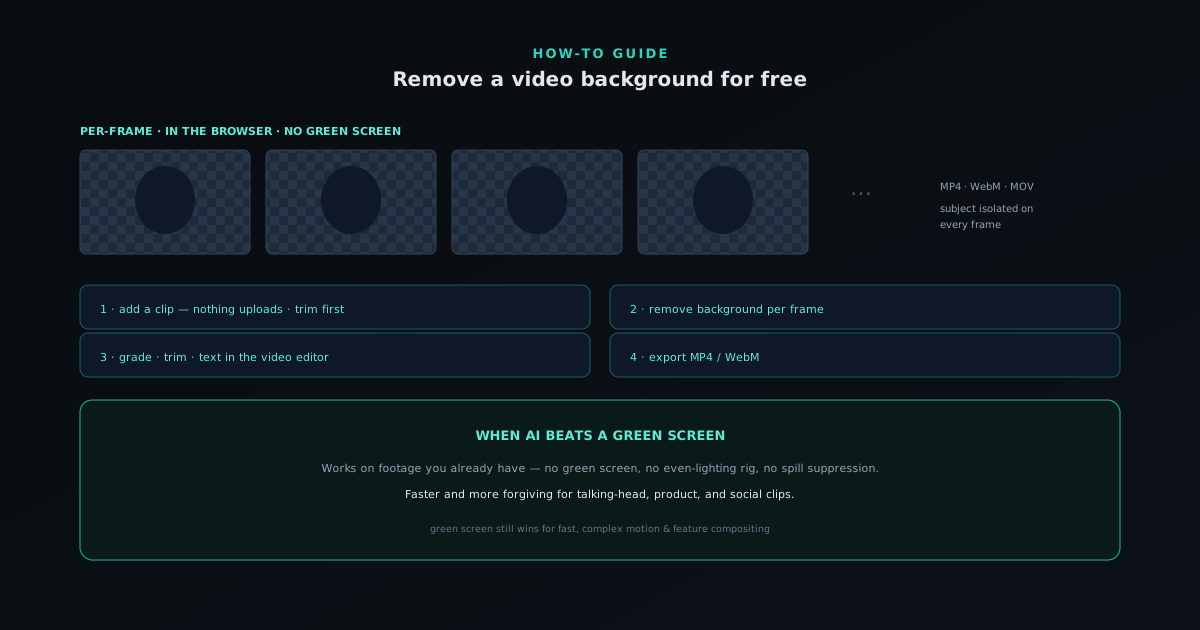
Removing a background from video used to mean a green screen and editing software. AI background removal changes that: the model isolates your subject on every frame, so you can cut a clean subject out of ordinary footage. This guide does it free, in the browser, with the video never leaving your device.
Open NSS Background Remover at bgremover.novusstreamsolutions.com and head to the video surface.
Step 1 — add your clip
Drag in a clip — MP4, WebM, MOV, and more are supported. As with images, nothing uploads; the processing happens on your machine. Because every frame is processed individually, a longer or higher-resolution clip takes more time, so trim to just the part you need before you start rather than after.
A tip that matters more for video than stills: the cleaner the separation between subject and background in the original (good lighting, contrast), the cleaner the cut on every frame.
Step 2 — remove the background per frame
The tool applies background removal across the whole clip so the subject stays isolated throughout, not just on one still. For subjects with soft edges or hair in motion, the higher-quality model is worth the extra time — the same mode logic as still images applies.
You end up with your subject on transparency across the timeline, ready to place over a new background or export with an alpha channel where supported.
Step 3 — finish in the video editor
The video editor turns a cutout into a finished clip. Color-grade the subject to match a new background, add filters and text overlays, and trim the timeline with fades — all in layers. Grading the subject to match wherever it is going is what makes a composited video believable rather than pasted.
When you are done, export to MP4 or WebM. For real-time use cases like calls and streams, the live-camera surface removes your webcam background on the fly instead.
- Inputs: MP4, WebM, MOV and more.
- Editor: color grade, filters, text overlays, trim/fade, layers.
- Export: MP4 or WebM — free, on-device, no watermark.
When this beats a green screen
AI removal works on footage you already have, with no green screen, no even lighting setup, and no spill suppression — the model separates the subject by understanding the image rather than keying a color. For most talking-head, product, and social clips, that is faster and more forgiving than chroma key.
A physical green screen still wins for fast, complex motion and feature-grade compositing. For the everyday video most creators make, in-browser AI removal gets you there for free.
Why video is harder than a single still
Removing the background from a video is not simply removing it from one image many times; the moving-image case introduces challenges a still never faces, and understanding them sets the right expectations. A video is a sequence of frames, and the model has to isolate the subject on every one of them, which means a clip is fundamentally more work than a photo — proportional to its length and resolution. That is why a longer or higher-resolution clip takes meaningfully more time to process, and why trimming to just the part you need before you start is not a nicety but the single most effective thing you can do to keep the job manageable.
The deeper difficulty is consistency across frames. A still only has to look right once; a video has to look right in motion, frame after frame, without the edge jittering or the cutout flickering as the subject moves. The eye is forgiving of a single imperfect frame but immediately notices a boundary that shimmers or a subject that pops in and out, so the bar for a clean video cutout is in some ways higher than for a photo. This is why the source footage quality matters so much more for video — small per-frame ambiguities that would be invisible in one photo become visible flicker when they vary across a moving sequence.
Lighting and contrast are the biggest lever
The quality of a video cutout is decided more by the footage than by anything you do in the tool, and the controlling factor is the separation between subject and background in the original. When the subject is well-lit and clearly distinct from what is behind it — in brightness, color, or focus — the model has an unambiguous signal to follow on every frame, and the cut comes out clean and stable. When the subject blends into the background, or the lighting is flat and shadowy, the model faces ambiguity that can vary frame to frame, which is exactly what produces edge flicker in motion.
This means the highest-leverage work happens before you ever open the tool, at the moment you shoot. Lighting the subject to stand out from the background, avoiding a backdrop that matches the subject's tones, and keeping the subject in focus all give the model a cleaner per-frame signal and dramatically improve the result. You cannot fully fix poor separation after the fact, so a few minutes of attention to lighting and contrast during filming pays off across every frame of the clip. For video specifically, good source footage is not optional polish; it is the foundation a clean cutout is built on.
Trim ruthlessly before you process
Because every frame is processed individually, the length of your clip directly determines how long the job takes and how much of your machine's resources it uses, which makes trimming first the most important efficiency decision. The instinct to process the whole clip and trim afterward is backwards for AI video removal: you would be spending processing time on frames you are going to discard. Cutting down to just the segment you actually need — the specific moment for a social clip, the relevant section of a talking-head take — before removal means every frame the model works on is a frame you will use.
This is especially worth internalizing for social content, where the finished clip is often short anyway. A fifteen-second vertical cut does not need a two-minute source run through removal first; trim to the fifteen seconds, then remove. Beyond saving time, working with a shorter clip keeps the whole process more responsive and makes any per-frame refinement you do afterward far less tedious. Trimming first is the video equivalent of not removing backgrounds from images you will never use — a small discipline that compounds into a much smoother workflow on every clip.
Keeping the edge stable in motion
The artifact that most distinguishes an amateur video cutout from a clean one is edge flicker — a boundary that shimmers or crawls as the subject moves — and managing it is largely about giving the model consistent input and choosing the right mode. Subjects with soft or moving edges, hair especially, are the most prone to frame-to-frame variation, and they are exactly where the higher-quality model earns its extra processing time, because its greater precision produces a more stable edge across the sequence. The same mode logic as stills applies, but the payoff is larger for video because consistency, not just single-frame accuracy, is at stake.
Beyond mode choice, stability comes back to the source footage: a subject that is clearly separated from its background on every frame gives a stable edge, while an ambiguous boundary is what flickers. If a cutout shimmers, the cause is usually either a too-light model on a soft-edged subject or footage where the separation is marginal, and the fixes follow directly — step up the model, or accept that footage with poor separation will need more careful handling. Setting the expectation that a clean video cut depends on both the right mode and good source separation, rather than on a single magic setting, is what keeps the result looking professional in motion.
Compositing the subject onto a new background
A cutout on transparency is the middle of the job, not the end; the point is usually to place the isolated subject over a new background, and the video editor is where that composition happens. Working in layers, you put your new background — a solid color, a gradient, an image, or another clip — behind the cut-out subject and arrange them on the timeline. This is where a talking-head clip gets dropped into a branded backdrop, a product gets placed in a new scene, or a subject is lifted from a messy room onto something clean. The layered approach means the subject and its new surroundings remain independently adjustable.
The thing that makes a composite believable rather than obviously pasted is that the subject and the new background have to look like they belong together, which is rarely true straight out of removal. The footage was lit for its original environment, so a subject cut from a warm room and placed on a cool background will look wrong until it is graded to match. The editor exists precisely to reconcile that, and treating compositing as a two-step process — place, then match — rather than expecting the raw cutout to sit perfectly is what separates a convincing result from a cutout floating unconvincingly on a backdrop it never shared any light with.
Grading the subject to sell the composite
Color grading is the step most responsible for making a composited video look real, and it is worth a deliberate pass rather than an afterthought. When you place a cut-out subject onto a new background, the two were captured under different light, and the human eye is remarkably sensitive to the mismatch even when it cannot name it — a subject that is too warm, too bright, or too saturated for its new surroundings reads as fake instantly. Grading the subject so its color temperature, brightness, and contrast match the new background is what dissolves that tell and makes the composite cohere.
The editor provides the grading and filter controls to do this in the same place as the cutout, so you can adjust and immediately see the subject settle into its new environment. The goal is not a dramatic look but a matched one: the subject should appear to have been filmed where it now appears. This is the same principle that makes a still composite believable, applied across a moving clip, and it is the finishing move that turns a technically-correct cutout into a video that looks intentionally shot rather than assembled. Skipping it is the most common reason an otherwise-clean video cutout still looks off.
When live camera is the better tool
Per-frame removal of a recorded clip is the right approach for footage you already have, but for real-time uses there is a purpose-built alternative worth knowing about: the live-camera surface removes your webcam background on the fly. For video calls, streaming, and any situation where the background needs to be replaced as you go rather than in post, processing a recorded file is the wrong tool — you want the removal happening live on the camera feed. The live-camera path is built for exactly that, running the removal in real time so your background is replaced in the moment.
Choosing between the two is simply a matter of whether the video already exists. If you are working with a recorded clip — an edited talking-head, a product video, social footage — the per-frame removal covered here, followed by finishing in the editor, is the path. If you need your background gone during a live call or stream, the live-camera tool handles it in real time without a recording step. Both run on your device and keep your footage private; they are two answers to two different questions, and reaching for the right one saves you from trying to force a post-production tool to do a live job or vice versa.
Why keeping footage on your device matters
Video is often more sensitive than stills, which makes the on-device nature of this removal especially valuable. Footage frequently contains more context than a single photo — a recognizable location, other people, a whole room, audio — and uploading raw video of yourself, a client, or an unreleased product to a third-party server is a larger exposure than uploading one image. Because the per-frame removal happens in your browser, the footage never leaves your machine, so even sensitive or pre-release video can be processed without that concern. The privacy guarantee that applies to images applies just as fully to the moving image.
This matters practically because the people doing serious video work are often precisely those with footage they cannot freely upload — creators under contract, businesses preparing unreleased material, anyone filming in a private space. A server-based video tool asks them to hand over the entire clip; an on-device one does not, which is the difference between a tool they can use for real work and one they cannot. The same architectural decision that keeps a photo private keeps a video private, and for footage — heavier, richer, and often more sensitive than a still — that structural privacy is arguably even more important.
Exporting: with a new background or as an overlay
How you export depends on what the cutout is for, and there are two distinct paths worth understanding. If you have composited the subject onto a new background in the editor, you export a finished, flattened clip to MP4 or WebM — the new background is baked in, and the result is a standard video ready to publish. This is the path for most uses: a talking-head on a branded backdrop, a product in a new scene, a subject lifted onto something clean, all delivered as a normal video file that plays everywhere.
The other path is keeping the subject on transparency for use as an overlay, which is supported where the format allows an alpha channel — WebM can carry transparency in a way MP4 cannot. That matters when the cutout is going to be layered on top of something else later, in another editor or as a picture-in-picture element, rather than composited here. Knowing the distinction prevents a common frustration: expecting an MP4 to preserve transparency, which it does not. If you need the subject to stay cut out for downstream layering, export to a format that supports alpha; if you have already placed it on its final background, a standard MP4 or WebM is exactly right. Matching the export to the intent is the last decision, and getting it right means the file behaves the way the next step expects.
Setting realistic expectations for the result
It is worth being honest about what in-browser per-frame AI removal does and does not do well, so the result meets your expectations rather than disappointing them. For the everyday video most creators actually make — talking-head clips, product shots, social content with a reasonably clear subject and decent lighting — it produces clean, usable cutouts for free, which is genuinely remarkable for something running in a browser tab. That covers the large majority of real use cases, and for those it is faster and more forgiving than setting up and keying a green screen.
Where it reaches its limits is the same place all background removal does: fast, complex motion with intricate edges, footage with poor subject-background separation, and the kind of feature-grade compositing where every frame must be flawless. For those demanding cases a physical green screen and professional tools still lead, and pretending otherwise would set you up for frustration. The honest framing is that this is an excellent free tool for the common case and not a replacement for a full production pipeline on the hard case — knowing which side of that line your project sits on is what lets you use the tool where it shines and reach for heavier solutions only when you genuinely need them.