2026 · NSS Background RemoverAbout 13 min readNovus Stream Solutions
How to batch-remove backgrounds from a product catalog
If you sell online, every product image probably needs a clean background. Here is how to remove backgrounds from a whole catalog at once with the NSS Background Remover — up to 100 images in a session, processed locally, delivered as a single ZIP with names intact.
Overview
A product catalog is death by a thousand cutouts. Every listing wants the same thing — the product on a clean, consistent background — and doing that one image at a time, by hand, across dozens or hundreds of photos is the kind of task that eats an afternoon and your will to live. The NSS Background Remover handles it as a batch: drop in a whole set of product photos, let it process them locally, and get back a single ZIP of transparent cutouts with the original filenames preserved. This guide walks through doing exactly that.
The important property, especially for product imagery you might not want sitting on a third-party server before launch, is that the whole batch runs on your device. Nothing is uploaded. The images become a ZIP without ever leaving the browser tab.
Step 1 — Prepare your photos
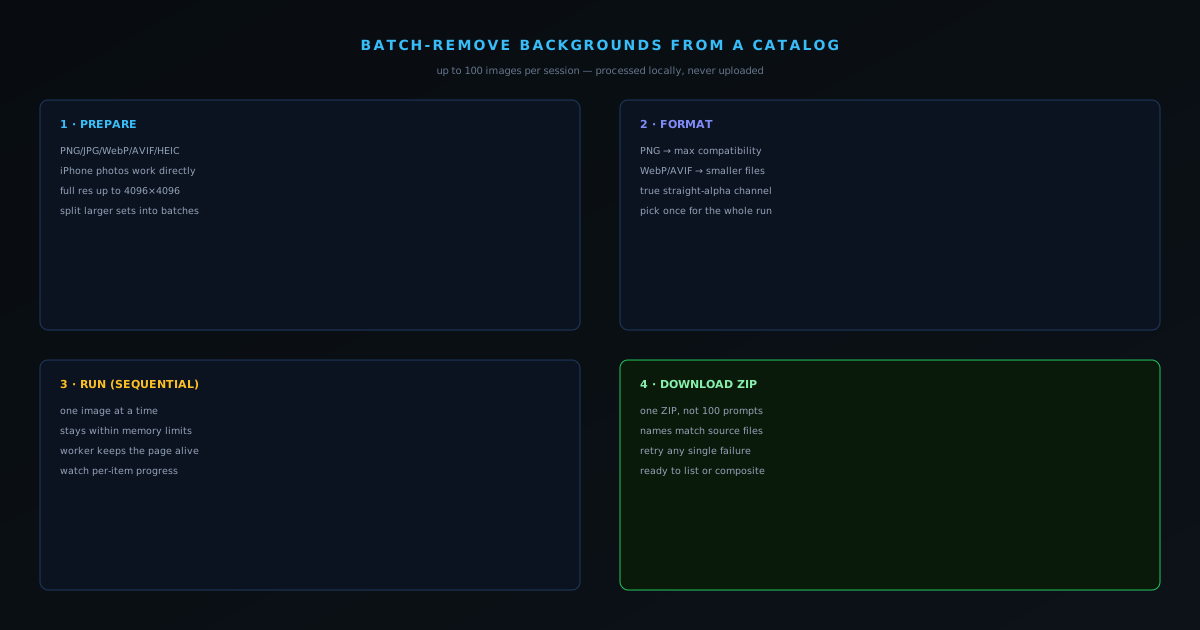
Gather the product images you want processed. The tool accepts PNG, JPG/JPEG, WebP, AVIF, and HEIC — that last one matters because it is what iPhones shoot, so phone photos work without converting first. Each image is processed at full resolution up to 4096×4096; larger images are downscaled for the AI pass and the resulting mask is scaled back onto the full-resolution original, so you do not lose quality on big photos.
You can run up to 100 images in a session. If your catalog is larger, split it into batches — and there is no penalty for doing so, since each batch is self-contained.
Step 2 — Drop them into the batch tool and pick a format
Load the set into the batch tool and choose your output format: PNG for maximum compatibility and a true straight-alpha channel, or WebP/AVIF if you want substantially smaller files across the whole catalog. For most marketplaces PNG is the safe default; for your own fast-loading storefront, WebP or AVIF can cut file size meaningfully across hundreds of images.
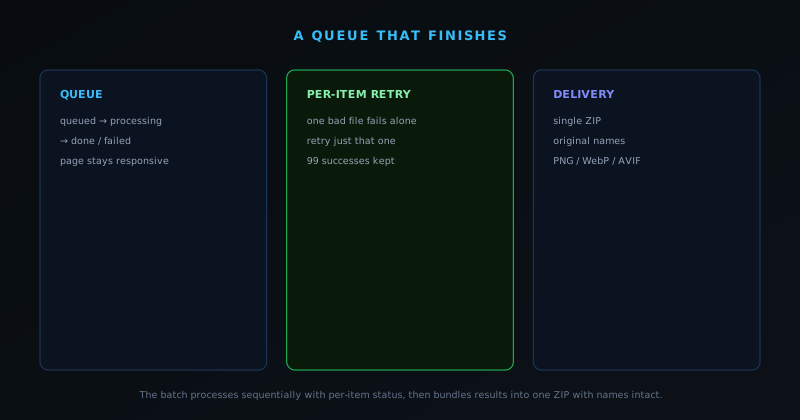
Then start the batch and let it run. The tool processes the images sequentially — one at a time — specifically to stay within browser memory limits, because trying to run a hundred AI inferences in parallel would exhaust memory and crash the tab. Sequential sounds slower but it is what makes the batch actually finish instead of dying halfway through.
Step 3 — Watch the queue and retry any stragglers
The queue shows progress item by item, and the heavy work runs in a worker so the page stays responsive while it grinds through your catalog — you can scroll, watch, and cancel without the tab freezing. If an individual image fails — a corrupt file, an odd edge case — it fails alone. You can retry that one item without reprocessing the ninety-nine that already succeeded, so one bad photo never costs you the whole run.
This per-item resilience is the difference between a real batch tool and a checkbox feature. A run that survives individual failures and makes steady, visible progress is one you can actually point at a catalog and trust.
Step 4 — Download the ZIP and use the cutouts
When the batch finishes, you get one ZIP file rather than a hundred download prompts, and each output is named to match its source image so you can map results back to products without guessing. From there the cutouts are ready to drop onto a clean white background for a marketplace, composited into a lifestyle scene, or used as transparent PNGs in your storefront templates.
If your next step is turning these cutouts into a consistent, listing-ready set, the marketplace image-pack post covers building a uniform pack from them. For the engineering-minded, the deep dive on batch processing explains the queue, worker, and memory design that keeps a hundred-image run from freezing the tab.
Why a catalog is the genuinely hard case
Removing the background from one product photo is a solved, satisfying task; doing it across a whole catalog is where the real difficulty lives, and it is worth naming why. The problem is not any single cutout — it is volume plus consistency. A storefront with dozens or hundreds of listings needs every product presented the same way, on the same kind of clean background, with the same edge quality, and producing that by hand one image at a time is both tedious and error-prone, because human consistency drifts over a long session. The batch tool exists precisely to take the volume and the consistency off your hands at once.
Consistency is the part people underestimate. A catalog where some cutouts are crisp and others have a faint halo, where some products sit on pure white and others on a slightly different shade, reads as careless even if each individual image is fine. Processing the whole set through the same tool with the same settings is what guarantees they match, and matching is what makes a collection of listings look like a real store rather than a pile of separately-edited photos. The batch is not just a time-saver; it is a consistency engine, and consistency is a trust signal to buyers.
Shooting with clean cutouts in mind
The quality of a cutout starts before the tool ever sees the image, at the moment you take the photo, so a little intention during shooting pays off across the whole batch. The AI handles difficult backgrounds well, but it has the easiest time — and produces the cleanest edges — when there is clear separation between the product and whatever is behind it. Shooting against a plain, evenly-lit background that contrasts with the product, avoiding shadows that blend into the subject, and keeping the product in focus all give the model a cleaner signal to work from, which means fewer images that need manual touch-up later.
This matters more at catalog scale than for a single photo, because small per-image problems multiply. If every shot in a hundred-image batch has a slightly muddy edge because the products were photographed against a similar-toned surface, you have a hundred cutouts that each need a little fixing. A consistent, contrast-friendly shooting setup turns that into a hundred clean cutouts that need none. The few minutes spent making the shoot cutout-friendly is leverage: it improves every image in the batch at once, which is exactly the kind of upstream effort that pays back at volume.
Choosing the output format for a whole catalog
The format decision carries more weight across a catalog than for a single image, because the file-size difference multiplies by every listing. PNG is the safe, maximally-compatible choice and the right default for marketplaces that expect it, preserving a true straight-alpha channel. WebP and AVIF, on the other hand, can cut file size substantially compared to PNG at similar visual quality, which across hundreds of images adds up to meaningfully faster page loads on your own storefront and less storage to manage. The trade is compatibility for weight, and the right answer depends on where the images are going.
A practical approach is to split by destination rather than picking one format for everything. Marketplaces that mandate or favor PNG get PNG; your own storefront, where you control the rendering and care about load speed, gets WebP or AVIF. Because the batch lets you choose the output format for the whole run, you can process the set once per destination format if needed, or simply pick the format that matches where most of these images will live. The point is that at catalog scale, format is a performance decision worth making deliberately, not a default to ignore.
When a cutout earns a manual touch-up
The AI gets the large majority of a product cutout right, but certain subjects benefit from a quick manual pass, and knowing which ones saves you from either over-editing or shipping a flawed image. Products with fine or wispy edges — anything with hair, fur, fringe, mesh, or fine straps — and transparent or reflective items like glassware or jewelry are the usual candidates, because their edges are genuinely ambiguous. For those, the heavier, fine-edge model is worth selecting, and a few strokes in the brush editor can recover detail the automatic pass missed.
The discipline at catalog scale is to triage rather than touch every image. Most product shots on clean backgrounds need no manual work at all and should be left alone; only the visually difficult subset warrants the extra attention. Spending your editing time only on the images that actually need it — the fuzzy-edged, transparent, or reflective ones — rather than fiddling with cutouts that are already clean is what keeps a large batch manageable. The tool does the bulk; your judgment is reserved for the genuinely hard items, which is the efficient division of labor.
Keeping results mapped to your products
A subtle but real risk with batch processing is losing track of which output belongs to which product, especially across a large set, and the tool is built to prevent exactly that. Each output in the ZIP is named to match its source file, so the mapping from result back to product is preserved automatically and you are not left guessing which transparent cutout corresponds to which listing. That naming discipline is what makes a hundred-image batch usable rather than a hundred anonymous files you have to re-identify by eye.
To get the most from it, name your source files meaningfully before you batch them — a clear product identifier in each filename carries straight through to the output, so the cutouts arrive already labeled in a way your listing workflow can use. A little structure in the input filenames turns the preserved-names feature into a real organizational asset: the ZIP you download is not just a pile of cutouts but a set of correctly-named, ready-to-place product images. At catalog scale, that organization is the difference between a smooth path to listing and an afternoon of matching files to products.
Why processing a catalog locally matters
Running an entire catalog through the tool without anything being uploaded is not just a privacy nicety; for many sellers it is the difference between being able to use the tool at all. Product imagery is frequently sensitive before a line launches — an unreleased collection, a seasonal drop, a collaboration under wraps — and uploading those photos to a third-party server ahead of launch is a real exposure that a competitor or a leak could exploit. Because the batch runs entirely in your browser, the images become a ZIP of cutouts without ever leaving your machine, so there is no pre-launch exposure to weigh.
This local-processing property scales the privacy guarantee to the catalog without weakening it. Whether you process one photo or a hundred, none of them are transmitted, so a seller preparing a large unreleased line can clear every image of its background without a single one touching an outside server. For the kind of seller who has the most to protect — anyone whose catalog reveals strategy or whose collaborations are embargoed — that structural privacy across the whole batch is exactly the property that makes a free tool usable for serious commercial work rather than only for already-public images.
Where the batch fits in the larger workflow
Background removal is one stage in getting a catalog listing-ready, and seeing where it sits helps you plan the rest. The clean cutouts the batch produces are the raw material for everything downstream: composited onto a uniform white background for a marketplace, dropped into a lifestyle scene to show the product in context, or assembled into a destination-specific image pack with the right names, alt text, and formats. The batch is the bottleneck-clearing step that turns a folder of raw photos into a set of consistent cutouts the rest of your workflow can build on.
Thinking of it that way keeps the batch from feeling like the whole job when it is really the first move. Once you have the consistent cutouts, the marketplace image-pack workflow can turn them into curated, listing-ready bundles in a click, and the conversion side of the business benefits from the clean, uniform imagery that results. The batch tool does the heavy, repetitive lifting of clearing backgrounds at volume; the value of doing it well is that every later stage inherits a consistent, professional starting point instead of a mixed bag of inconsistent images.
Scaling past a hundred images
A session handles up to a hundred images, which covers most catalogs in one pass, but larger inventories simply mean running more than one batch — and there is no penalty for doing so, because each batch is self-contained. Splitting a large catalog into batches of a hundred, processing each with the same settings and output format, and collecting the ZIPs produces exactly the same consistent result as one giant run would, just in manageable chunks. Keeping the settings identical across batches is the only discipline required to ensure the whole catalog still matches.
The sequential, memory-bounded design is what makes this reliable at any scale. Because each batch processes one image at a time to stay within browser memory limits rather than trying to parallelize, a run of a hundred behaves predictably and finishes, and the next batch behaves the same way. So scaling to a thousand-image catalog is not a different kind of operation, just ten dependable runs of the same operation. The tool is built to make steady, predictable progress rather than to attempt heroic all-at-once processing that risks crashing, which is precisely the property you want when clearing a large inventory you are depending on.
Why the page stays usable while it runs
One of the quiet reasons a large batch is bearable is that the page does not freeze while it works. The heavy inference runs in a background worker rather than on the main thread, so the interface stays responsive throughout — you can watch the queue advance item by item, scroll, and cancel without the browser locking up or warning you that the page is unresponsive. For a hundred-image run that takes a while, that responsiveness is the difference between a tool you can leave working and check on and one that holds your whole browser hostage until it finishes.
That architecture also makes the run feel trustworthy, which matters when you are processing something you care about. Because the queue shows per-item status as it goes, you always know exactly where the batch is, which items have completed, and whether any need a retry — there is no opaque spinner that might be stuck. Combined with per-item failure handling, where one problematic file fails on its own without taking down the run, the responsive, visible queue turns a long batch from an anxious wait into a process you can monitor and trust to finish. The engineering behind that is covered in depth in the batch-processing deep dive.
A pre-flight checklist for a catalog run
A little preparation makes a catalog batch go smoothly, and a short checklist prevents the common avoidable problems. Confirm your source files are named meaningfully so the preserved output names are useful. Decide your output format based on where the images are going — PNG for marketplaces, WebP or AVIF for your own fast-loading storefront. Make sure your photos are reasonably consistent going in, since a uniform shoot produces a uniform set of cutouts. And if your catalog exceeds a hundred images, split it into batches up front so each run stays within a single session.
Running that quick check before you start is cheaper than discovering a problem after processing a hundred images, and it keeps the result genuinely listing-ready rather than something you have to reprocess. None of it is onerous — meaningful filenames, a format decision, a consistent set, and sensible batch sizes — but together they turn the batch from a raw background-removal pass into a clean, organized, destination-appropriate set of product images. The tool does the hard computational work; this checklist is the small bit of human planning that makes its output drop straight into your storefront or marketplace without a second pass.